Visit m365.cloud.microsoft/apps in your web browser and if prompted, sign in using your company email address and password.
Click on Install apps in the top-right corner, then click on Install Microsoft 365 apps.
Click the Install Office button and the installer will download to your Downloads folder.
Install
Navigate to your Downloads folder and double-click OfficeSetup.exe.
If you see the User Account Control prompt that says, Do you want to allow this app to make changes to your device? select Yes.
The install begins.
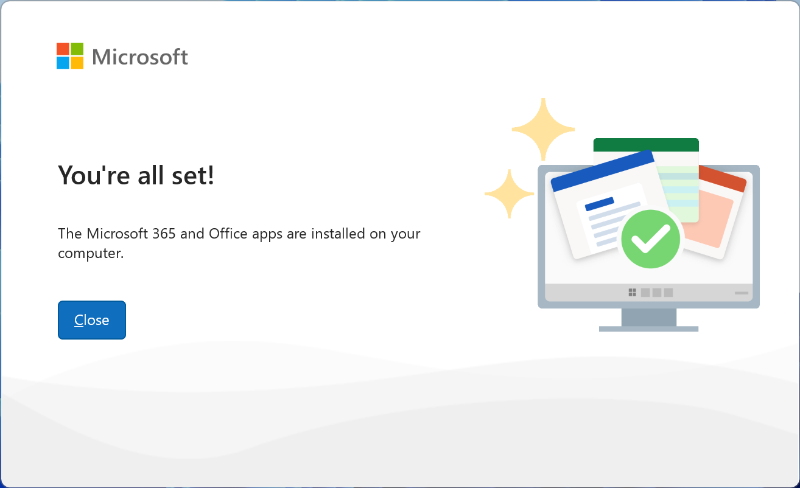
Your apps are ready when you see “You’re all set!” Click Close.
When you open an Office app, you can keep it visible on your Taskbar by right-clicking its icon at the bottom of the screen, then left-clicking on Pin to Taskbar.
Install on a Mac
Download the Microsoft 365 apps
Visit m365.cloud.microsoft/apps in your web browser and if prompted, sign in using your company email address and password.
Click on Install apps in the top-right corner, then click on Install Microsoft 365 apps.
Click the Install Office button and the installer will download to your Downloads folder.
Install
Once the download has completed, open Finder, go to Downloads, and double-click Microsoft Office…Installer.pkg file (the name will vary slightly).
On the first installation screen, select Continue to begin the installation process.
Review the software license agreement, and then click Continue.
Select Agree to agree to the terms of the software license agreement.
Choose how you want to install Office and click Continue.
Review the disk space requirements or change your install location, and then click Install.
Enter your Mac login password (this is the password that you use to log in to your Mac) then click Install Software.
The software begins to install. Click Close when the installation is finished.
To pin the Office apps to the Dock, go to Finder > Applications and open the Office app you want.
In the Dock, Control+click or right-click the app icon and choose Options > Keep in Dock. Repeat the process to pin Outlook, Word, Excel, PowerPoint and Teams.
Activate Office
Open any Office app and the What’s New window opens automatically.
Click Get Started > Sign in.
Enter your company email address and click Next, followed by your password and Sign in.