How to stop malicious website notifications
You may have received a worrying pop-up in the bottom-right corner of your screen, possibly alerting you to a virus infestation or something similar.
Don’t panic!
This is just a spam notification from an untrustworthy website, and no harm is done. Typical fake virus alerts often mention McAfee (which we don’t use), and might look something like this:
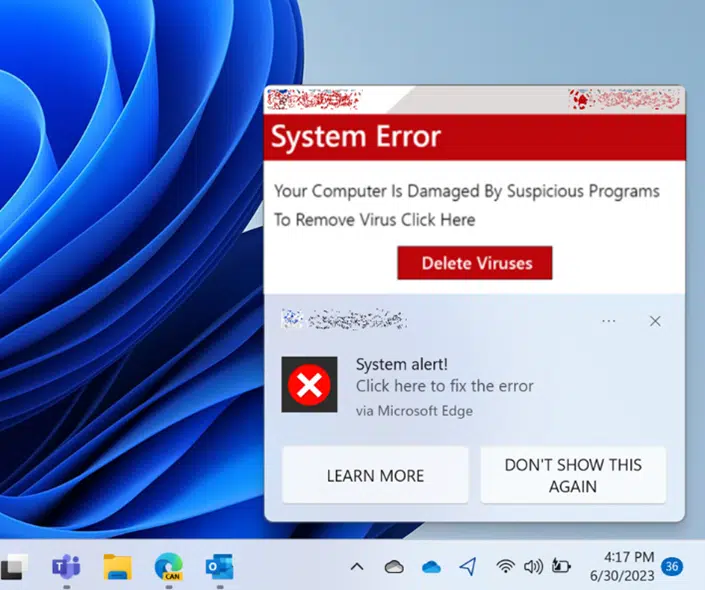
If you currently have one of these notifications on your screen, you can easily block it by clicking on the three dots (indicated in the image below) then click Turn off all notifications for…

That’s it! No more spam notifications from that site! In the future, if a website offers to show notifications, you most likely want to click Block.
The notification isn't on my screen right now
If the malicious notification is no longer on your screen, then you can block it from the settings page for the Edge browser.
In Edge, click the three dots in the top-right corner of the window.

Select Settings > Cookies and site permissions and select Notifications. Under Allow, you’ll find a list of websites that are currently sending you notifications.
Select the three dots next to the website from which you want to stop receiving notifications and select either Remove or Block.

- Selecting Block stops the website from sending you notifications, and is probably what you’re looking for.
- Selecting Remove stops notifications also, but if you visit this website in the future the site will ask if you want to allow notifications again.
How did this happen?
Occasionally, when browsing a website, you might get asked if you want to allow notifications from that site. Notifications can be very useful if you particularly want to stay connected to that website and be notified of updates, promotions, changing prices and so on.
However, untrustworthy websites will try to trick you into allowing notifications so they can send misleading messages, spam and fake virus alerts straight to your desktop.
The example below shows how a website might manipulate you into allowing notifications while appearing to require you to click Allow to proceed. You would always want to click Block in this circumstance and navigate away – that website is not to be trusted!