You may be working closely with external parties who need to review or collaborate on certain files.
There are two methods to share a folder with someone outside the company – from within Teams/SharePoint, and from File Explorer if the files are synced to your computer.
Share from File Explorer
Right-click the folder you want to share, then left-click on Share.
Choose how you want to share the folder. By default, People you specify can view will be selected. You can click this and select to Allow editing if you need the person to be able to make changes to the files, rather than just view it.
Enter the email address of the person you want to share the folder with, and then click the email address to confirm. Enter an optional message then click Send.
That’s it! The recipient will receive an email from you with a link to the shared folder, and guidance on how to access it.
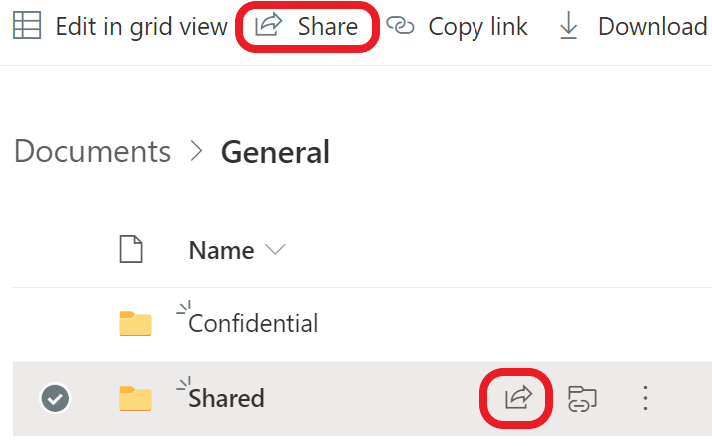
Navigate to your SharePoint site, tick the appropriate folder and click either of the Share buttons.
Choose how you want to share the folder. By default, People you specify can view will be selected. You can click this and select to Allow editing if you need the person to be able to make changes to the files, rather than just view it.
Enter the email address of the person you want to share the folder with, and then click the email address to confirm. Enter an optional message then click Send.
That’s it! The recipient will receive an email from you with a link to the shared folder, and guidance on how to access it.
Share from Teams
Navigate to the appropriate team, and select the Files tab (or Document Library, if that’s where your company files are stored) and click Open in SharePoint.
Tick the appropriate folder and click either of the Share buttons.
Choose how you want to share the folder. By default, People you specify can view will be selected. You can click this and select to Allow editing if you need the person to be able to make changes to the files, rather than just view it.
Enter the email address of the person you want to share the folder with, and then click the email address to confirm. Enter an optional message then click Send.
That’s it! The recipient will receive an email from you with a link to the shared folder, and guidance on how to access it.