Add a shared mailbox to Outlook for Mac, Outlook on the Web, and on your phone
Shared mailboxes are usually generic email accounts which are accessed by more than one person, typically something like info@company.com or accounts@company.com.
They can also be mailboxes belonging to someone else to which you have delegated access. This might be your manager’s email account, for example.
Shared mailboxes appear automatically in Outlook on Windows, but need to be manually added to Outlook for Mac, Outlook on the web and on your phone. Only the Outlook app on phones and iPads support adding shared mailboxes, so if you aren’t already, you’ll need to be using that app for your work email. See our guide for setting up the Outlook app on your mobile device.
Outlook on your phone or iPad
After you’ve added your primary account to the Outlook app, tap the Home icon in the top-left corner, then tap the Add Account button.
Tap Add Shared Mailbox.
If you have multiple accounts in the Outlook app, under Select an account to log in with tap your primary work account; the one which has permission to access the shared mailbox.
Enter the email address of the shared mailbox you wish to add, then tap the Add Shared Mailbox button.
The shared mailbox will display in your account list in the Outlook app.
To remove a shared mailbox, go to Settings > Accounts. Then tap on the shared mailbox and select Delete Account.
Outlook for Mac
On the Tools menu, click Accounts then click your Microsoft 365 account.
Click Delegates and Sharing then the Shared with Me tab.
Click the + symbol and start to type the email address of the shared mailbox. When the mailbox appears in the search results, click it then click Add and Done.
Close the Accounts window and you’ll see that your shared mailbox appears in the left-hand pane of Outlook (though you might need to scroll down to see it).
Click the mailbox to expand the folders and see the Inbox.
Outlook on the Web
Visit Outlook on the web by signing in at outlook.cloud.microsoft using your company email account and password.
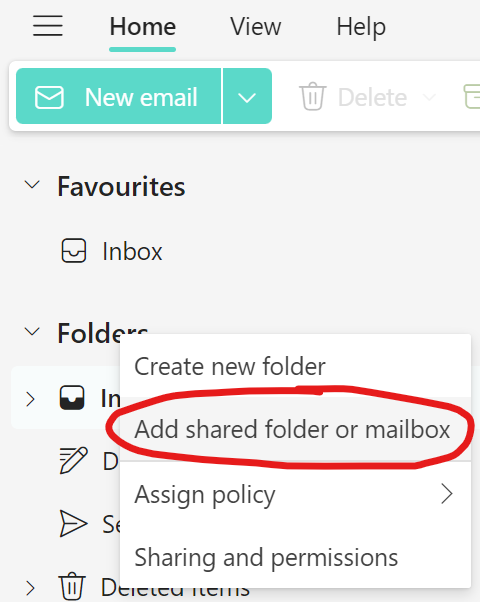
Right-click your email address in the left-hand pane, and left-click on Add shared folder or mailbox.
Enter the name or email address of the shared mailbox you want to add, click to confirm that mailbox when it appears in the drop-down list, then click Add.
The shared mailbox will then remain at the bottom of the left-hand pane, and you can click it to expand the folders.